General Q
General Q is your project co-pilot. You'll find it as the Q icon in the top navbar (next to notifications) whenever you're inside a project. Click the icon to open a slide-out panel with onboarding steps and next-step suggestions. The icon shows a small badge with the number of active suggestions.
General Q is strategic — it suggests what to do next but doesn't chat, edit files, or perform work directly. For hands-on tasks like writing pages, creating missions, or restructuring content, use Sidebar AI. Every Q suggestion that needs conversation can hand off to a new Sidebar AI chat in one click.
How It Works
General Q combines rule-based suggestions with AI-powered evaluation to propose actionable next steps for your project.
Suggestion Cards
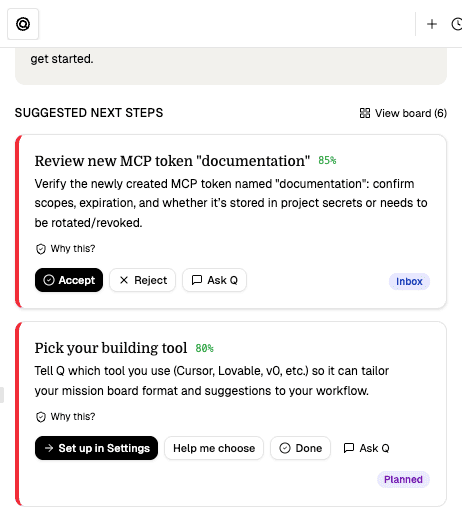
Next steps appear as interactive cards inside the Q panel. Each card shows:
- Title — what to do
- Description — why it matters
- Confidence — how sure Q is that this is the right next step
- Action buttons — direct actions like "Set up in Settings", "Open Brief", or "Ask Q"
From the inbox, you can Accept, Reject, or Ask Q about any suggestion. Accepting moves a suggestion to a planned/in-progress state with action buttons. Clicking Ask Q opens a new Sidebar AI chat with the right context pre-loaded, so you can dig in immediately.
Board View
Click "View board" inside the panel to see all your active suggestions as a kanban-style board — a quick overview of everything Q is recommending across Inbox / Planned / In Progress / Done. Close the board to return to the inbox view.
Onboarding
When you first create a project, General Q walks you through setup with a sequence of guided steps shown inside the Q panel:
- Pick your building tool — Tell Q whether you use Cursor, Lovable, v0, Claude Code, or another tool
- Personalize your project — Set name, status, and tagline in the sidebar header
- Set your project identity — Configure domain, audience, and industry in Settings
- Review your Brief — Read and refine the project brief
- Review your Gaps — Address open questions and gaps
- Make your first edit — Edit the brief in edit mode
- Create an MVP-Scope page — Structure what's in scope for your first version
- Chat with the AI Assistant — Try the Sidebar AI for hands-on work
- Create a Dev mission board — Ask AI to break your scope into missions
- Connect your tools via MCP — Set up Cursor, Claude, or other AI tools via the MCP Server (shown when applicable)
Each step has action buttons that take you directly to the right place — no need to hunt through menus. The Q icon gently pulses while you have pending onboarding suggestions you haven't seen yet.
Onboarding steps are project-aware. If you've already set your building tool or connected MCP, those steps won't appear. Q adapts to what you've already done.
Follow-Up Suggestions
After onboarding, General Q continues to watch your project and suggest next steps when meaningful events happen:
- Mission completed — When you move missions to Done, Q may suggest syncing your feature set or brief to reflect the new state of the product
- Mission created — Q may suggest related actions or context
- Context updated — When project context changes, Q evaluates whether follow-ups are needed
- MCP token created — Q may suggest next configuration steps
Suggestions are carefully gated — Q proposes at most 1–2 actions per event and has a cooldown to avoid being noisy. Low-confidence suggestions are suppressed entirely.
General Q vs Sidebar AI
| General Q | Sidebar AI | |
|---|---|---|
| Role | Strategic co-pilot | Hands-on assistant |
| Where it lives | Navbar icon → slide-out panel | Right-side sidebar |
| Chat | No (suggestions only) | Yes (per-session) |
| Edits files | No | Yes (when allowed) |
| Creates missions | No (suggests you do it) | Yes |
| Model | Fixed (evaluator) | User-selectable |
| Best for | "What should I do next?" | "Do this for me" |