Sidebar AI
Sidebar AI is Q's hands-on assistant. Open a new chat tab, choose a model, decide whether Q can edit your files, and start working. It can create pages, write content, manage missions, search your project, and browse the web - like having a product manager in a chat window.
Models
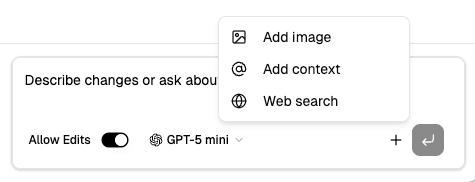
Choose the model that fits your task. The selector is in the footer of the chat input.
| Model | Description | Cost |
|---|---|---|
| GPT-5 mini | Fast and capable for everyday tasks | Free during beta |
| Claude Opus 4.7 | Most capable - best for complex reasoning | Credits |
| Claude Sonnet 4.6 | Balanced performance and speed | Credits |
| GPT-5.5 | Latest from OpenAI | Credits |
| Gemini 3.1 Pro Preview | Google's flagship preview | Credits |
Your last selected model is remembered across sessions.
Premium models require AI credits. If you run out, a banner offers to switch to GPT-5 mini (free). See Plans & Credits for how credits work.
Read vs Edit Mode
Toggle Allow Edits in the chat footer to control what Q can do:
Read-Only (Allow Edits off)
Q can read your project, search content, and answer questions - but cannot change anything. The input placeholder shows "Ask about your idea..." and the empty state reads "Q Assistant (Read-only)".
Available tools:
| Tool | What it does |
|---|---|
| List Files | Browse all pages and sections in the project |
| Read File | Read the full content of a specific page |
| Read Asset | Analyze uploaded PDFs |
| Search Project | Hybrid keyword + semantic search across pages and missions |
Edit Mode (Allow Edits on)
Q gets everything from read-only mode plus the ability to create and modify content. The placeholder shows "Describe changes or ask about your idea...".
Additional tools:
| Tool | What it does |
|---|---|
| Create File | Create new text pages or mission boards (content shown as a diff for review) |
| Write File | Propose changes to existing pages (always shown as a diff, never saved directly) |
| Create Board Item | Create 1–10 missions on a mission board |
| Update Board Item | Change mission metadata (status, title, priority, operation) or body |
| Delete Board Item | Remove missions from a board |
| Create Operation | Add a new operation to group missions |
| Update Operation | Rename an operation |
| Delete Operation | Remove an operation (missions become unassigned, not deleted) |
Even in edit mode, Q never saves changes directly to text pages. All edits are proposed as diffs that you review, accept, or reject - just like the AI proposal flow in the editor.
Adding Context
The Tools dropdown in the chat footer gives you three ways to enrich the conversation:
Images
Attach images for Q to analyze - screenshots, wireframes, designs, or any visual reference. Q uses multimodal capabilities to understand the image content.
Page Context
Select specific pages, missions, or folders from your project. Q reads these at the start of the conversation to have the right context before answering.
Web Search
Enable real-time web search so Q can look up current information - competitor landscapes, market data, documentation, or trends. You can configure:
- Country and Language - localize results
- Domain - restrict to specific websites
- Recency - filter by how recent the content is
Web search requires a paid plan. It's available when the workspace has credits or an active subscription.
Chat Sessions
Starting a New Chat
Click the + button (or press Cmd+K) in the tab bar to open a new chat session. Each chat is a separate conversation with its own context.
Chat Tabs
Multiple chats can be open simultaneously as tabs at the top of the AI sidebar. Click a tab to switch between conversations. Each tab shows a streaming indicator when Q is actively working.
Chat History
Click the clock icon in the tab bar to browse past conversations:
- Search - find conversations by keyword
- Recent - active sessions grouped by Today, Yesterday, This Week, This Month, Older
- Archived - sessions you've filed away
You can resume any past session by clicking it - it loads into a new tab with the full conversation history. Sessions can also be archived or deleted.
While Q is Working
When Q is processing a request, you'll see:
- "AI is working" banner with "View live" to expand the streaming response
- Tool Logs - a collapsible panel showing the last 10 tool calls Q made (e.g. "Read File: brief.md", "Search Project: authentication")
- Stop button to cancel the current request
- New chat button to start a fresh conversation without waiting
Quoting Content
When reading a text page, you can select text and choose "Quote in Chat" to send it to the Sidebar AI input as a quoted block. This is useful for asking Q about specific passages or requesting targeted changes.