Page Manager
The Page Manager is the settings panel for organizing pages inside a project. You access it from Project Settings > Pages, or by clicking "Manage Pages" at the bottom of the file tree.
Page Types
When adding a new page, you choose from three tabs: From Scratch, Special, and Templates.
From Scratch
Two default page types are available:
| Type | Description |
|---|---|
| Text Page | A Markdown document for notes, documentation, or written content. See Text Pages. |
| Mission Board | A task board with missions, operations, statuses, and priorities. See Mission Boards. |
When creating a Mission Board, you configure:
- Mission ID Prefix - 2–5 uppercase letters (e.g.
DEV,MKT,BIZ) used to number missions likeDEV-0001 - AI Instructions (optional) - tell AI how to behave on this board (up to 2,000 characters)
- Mission Body Template (optional) - customize the default body for new missions (up to 5,000 characters). Supports
{{title}}and{{operation}}placeholders.
Special Pages
Four special page types are available - one of each per project:
| Type | Description |
|---|---|
| Goals & Metrics | Track manual goals, targetless metrics, and archived OKR periods in one place. See Goals & Metrics. |
| Growth Lab | Track marketing channels, run experiments, and build a structured memory of what you have learned. See Growth Lab. |
| Website Copy | Scrape selected live website pages into read-only Markdown context for Q. See Website Copy. |
| Assets | Upload and manage PDFs, images, and other files |
| Links | Collect external links to resources, tools, and references |
Templates
Pre-built pages with content and structure already in place.
| Template | Description |
|---|---|
| Product Hunt Launch | A mission board playbook with 8 missions across 3 operations: Before Launch, Launch Day, and After Launch |
| Positioning | A guided page for defining audience, problem, alternatives, and differentiators |
| Audience | A template for documenting your ICP, buying triggers, and anti-personas |
| Messaging | A template for value props, copy, objections, and channel-specific messaging |
| Channel Strategy | A template for your distribution thesis, focus channels, and channel backlog |
Templates are in early alpha. More community templates are being added over time.
Adding a Page
When adding any page, you configure:
- Page Name - e.g. "Roadmap", "Strategy", "Launch Plan"
- Category - choose from existing categories or common defaults: Content, Planning, Work, Resources, Development
The page appears in the file tree under its category immediately after creation.
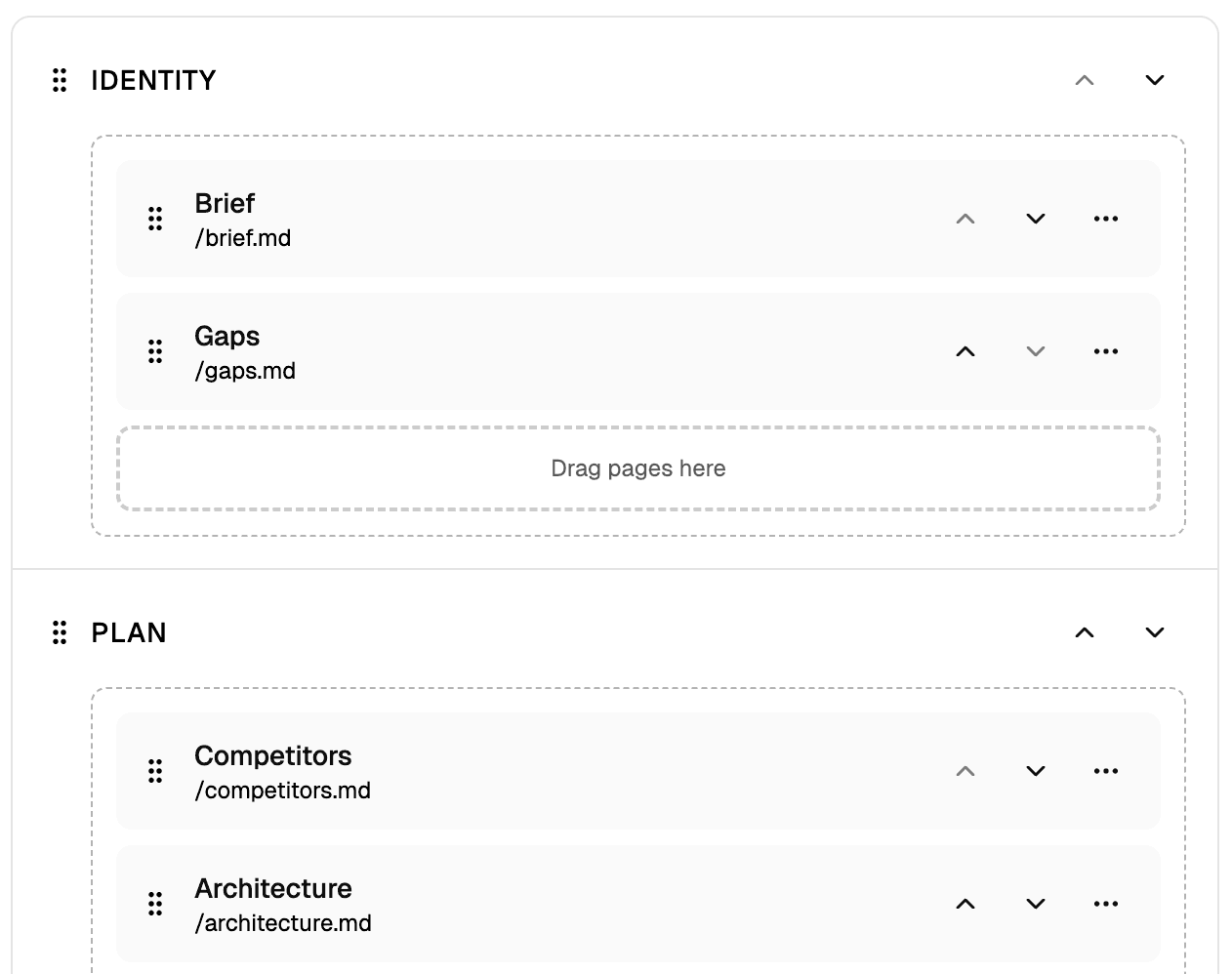
Organizing Pages
Categories
Pages are grouped by categories in the file tree. You can:
- Add a category - create an empty category (e.g. "Planning", "Research", "Strategy")
- Reorder categories - move up or move down
- Delete a category - only possible when empty
Page Order
Within a category, pages can be reordered:
- Drag and drop - use the drag handle to move pages
- Move up / Move down - arrow buttons for precise positioning
- Move to category - reassign a page to a different category or create a new one
Deleting Pages
Pages can be deleted from the Page Manager. This action removes the page and its content permanently.
Deleting a page cannot be undone. Make sure you don't need the content before removing it.