Mission Boards
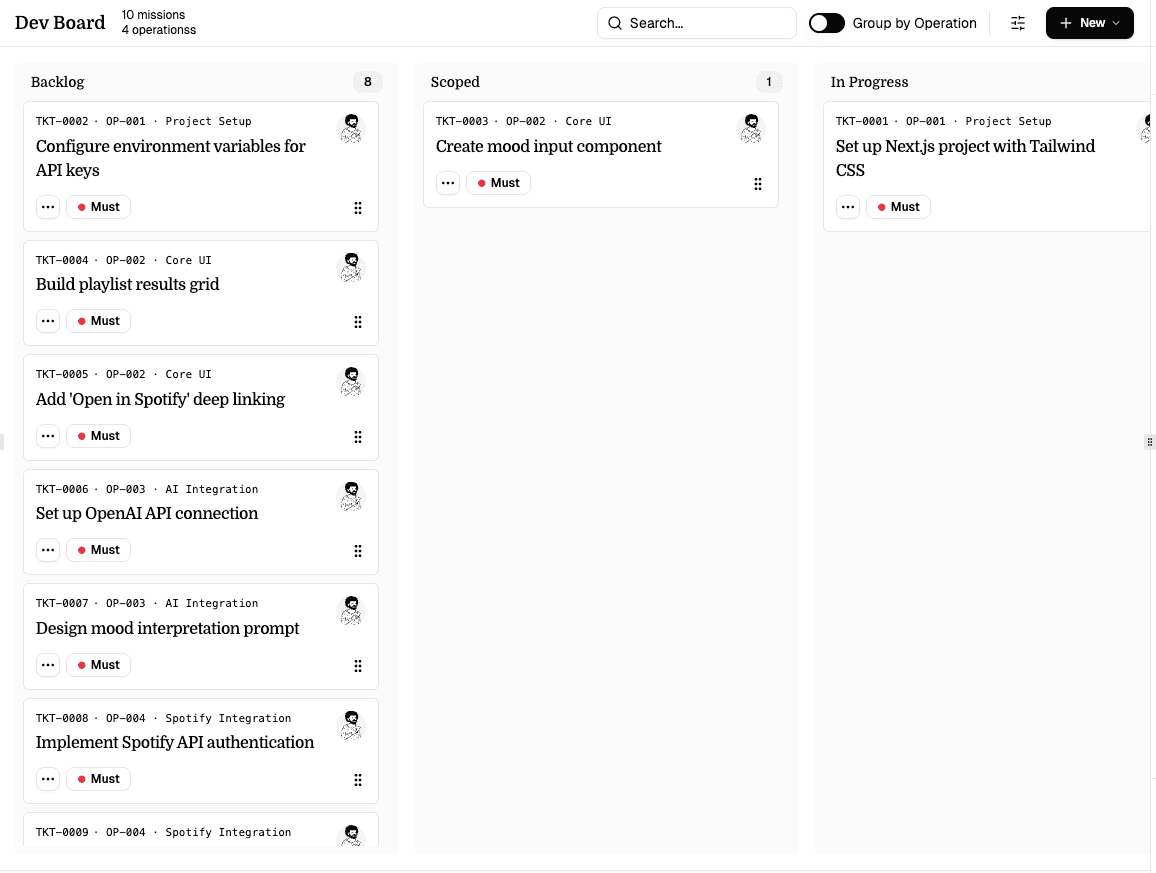
A mission board is a smart kanban board for organizing execution. It uses operations (like epics or categories) to group related missions (like tickets or issues) across customizable status columns.
Core Concepts
Operations
Operations are high-level groupings - think of them as epics, workstreams, or categories. Each operation has an auto-generated ID (e.g. OP-001) and a title. Missions can optionally belong to an operation.
Missions
Missions are the individual work items - like tickets or issues. Each mission has:
- Mission ID - auto-numbered with a configurable prefix (e.g.
DEV-0001,GTM-0003) - Title - what the mission is about
- Body - a full Markdown document (same as a text page)
- Status - which column the mission is in
- Priority - how important it is
- Operation - optional grouping
- Assignee - a workspace member or unassigned
- Custom metadata - key-value pairs like estimate, due date, area, or type
Board Layout
Columns
Each column represents a status. The default workflow has five columns:
| Status | Description |
|---|---|
| Backlog | Ideas, drafts, not refined |
| Scoped | Ready for AI or human pickup |
| In Progress | Being worked on |
| Review | Done, needs verification |
| Done | Shipped and verified |
You can customize statuses in Board Settings (add, remove, rename, reorder).
Drag and Drop
Drag mission cards between columns to update their status. Visual feedback shows where the card will land. Updates are optimistic - the card moves immediately before the server confirms.
Group by Operation
Toggle Group by Operation in the toolbar to see missions grouped under their operation within each column. Groups are collapsible and show the operation ID, title, and mission count.
Mission Cards
Each card on the board shows:
| Element | Description |
|---|---|
| Mission ID | Auto-numbered (e.g. DEV-0001) |
| Operation | If assigned: OP-001 · Operation Title |
| Title | The mission's name (up to 2 lines) |
| Assignee | User avatar or "Unassigned" |
| Priority | Color-coded badge (Must, Should, Could, Won't) |
| Cursor status | Badge when assigned to Cursor Cloud Agents (Creating, Working, Done, Error, Stopped) |
| PR link | PR #123 linking to the pull request when one exists |
| AI indicators | Icon for AI-created missions pending review, or recently AI-updated |
| Metadata | Up to 2 custom fields shown as badges |
| Drag handle | Grip icon for drag and drop |
Right-click a card to Open in New Tab within Q.
Mission Detail View
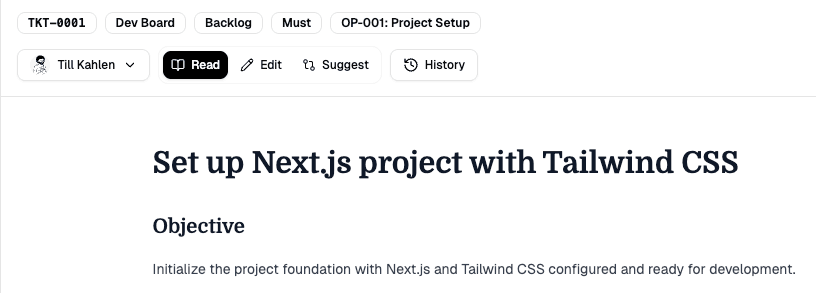
Click a mission card (or select "Details" from the dropdown) to open the full mission view. It works like a text page:
- AI Review Banner - if the mission was created by AI and hasn't been reviewed yet, a banner shows "AI-created mission pending review" with Accept and Delete buttons
- Header - mission ID, board name, status, priority, operation, assignee, custom metadata, and action buttons
- Content - the mission body in a Markdown editor with Read and Edit modes
- History - full version history, same as text pages
- Activity & Comments - timeline with events and discussion, same as text pages
Creating Missions
From the board toolbar, click New > New Mission. The create dialog includes:
| Field | Required | Default |
|---|---|---|
| Title | Yes | - |
| Operation | No | Pre-selected or "No Operation" |
| Assignee | No | Current user or "Unassigned" |
| Priority | Yes | Should |
| Status | Yes | Backlog |
The dialog shows what the next auto-generated ID will be (e.g. "New mission will be assigned ID: DEV-0005").
Creating Operations
From the toolbar, click New > New Operation. Provide a title and an optional description. Operations are auto-numbered (OP-001, OP-002, etc.).
Board Settings
Open Board Settings from the board toolbar. Four tabs are available:
Workflow
Configure statuses (columns) and priorities:
- Statuses - add, remove, rename, and reorder. Drag to change column order. At least one status is required.
- Priorities - add, remove, rename, and reorder. At least one priority is required.
Default priorities follow the MoSCoW method:
| Priority | Meaning |
|---|---|
| Must | Critical - must be done |
| Should | Important - should be done |
| Could | Nice to have |
| Won't | Explicitly out of scope for now |
Operation Settings
View all operations with their mission counts. Rename operations inline or delete them (missions lose the operation assignment but are not deleted).
Instructions
Two fields that shape how AI works on this board:
- AI Instructions - tell Q how to behave when working with this board (up to 2,000 characters). Example: "This is the dev board. Missions should be technical and include acceptance criteria."
- Mission Body Template - customize the default body for new missions (up to 5,000 characters). Supports
{{title}}and{{operation}}placeholders. A "Reset to default" button restores the built-in template.
Different tools expect different mission formats. For example, Lovable works best with prompt-style bodies, while Cursor prefers structured dev tickets. Customize the template to match your building tool.
Integrations
Enable Cursor Cloud Agents for this board. When enabled, missions can be assigned to Cursor for AI-powered development. Requires a linked GitHub repository and a Cursor API key in account settings. See Cursor Cloud Agents for the full setup.