Project Container & File Tree
When you open a project, you're in the Project Container - a three-panel layout that gives you everything at a glance: navigation on the left, content in the center, and AI on the right.
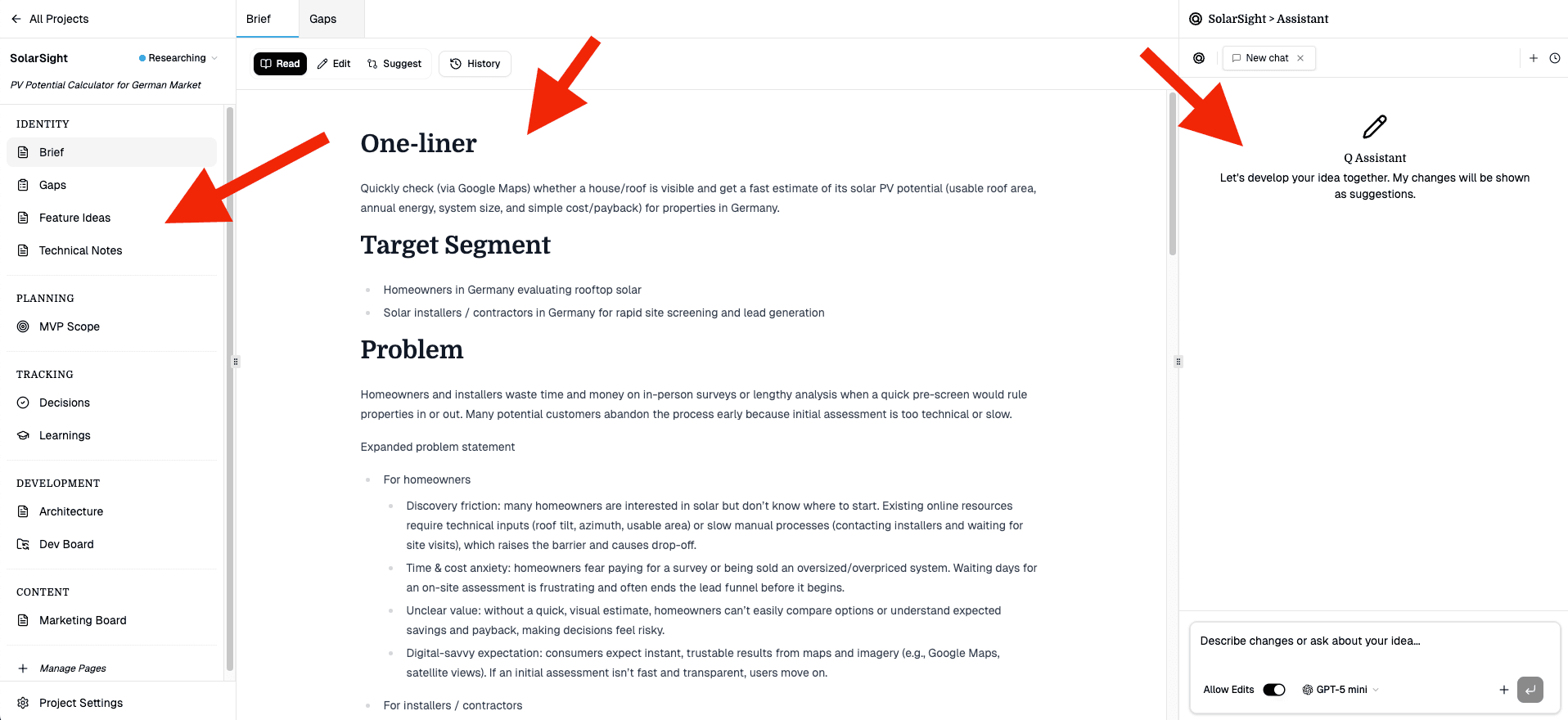
Layout
Desktop
On desktop, the container is split into three resizable panels:
| Panel | Default width | Range | Content |
|---|---|---|---|
| File Tree | 15% | 10–30% | Project navigation and page list |
| Content Area | 60% | 30–80% | Active page (text editor, mission board, etc.) |
| AI Sidebar | 25% | 15–40% | Sidebar AI chat tabs |
Drag the handles between panels to resize them to your preference.
Mobile
On mobile, the three panels collapse into a single view with a bottom navigation bar:
- Files - the file tree
- Content - the active page
- AI - the AI sidebar
Tap each tab to switch between views. The AI tab shows a badge when there are pending AI suggestions.
File Tree
The file tree is the left panel showing all pages in the project, organized by category.
Structure
Pages are grouped under category headings (e.g. Content, Planning, Work) as configured in the Page Manager. Each page shows its icon (based on type) and name.
Project Header
At the top of the file tree, you'll find:
- Back link - navigate back to "All Projects" in your workspace
- Project name - editable inline
- Status dropdown - change the project status (Captured, Researching, Building, Live, Paused, Killed)
- One-liner - editable tagline for the project
Navigation
Click any page to open it in the content area. The active page is highlighted.
Context Menu
Right-click a page to access additional options:
- Open in New Tab - opens the page in a new tab within Q (not a browser tab). This lets you have multiple pages open simultaneously with a tab bar at the top of the content area.
Manage Pages
At the bottom of the file tree, click Manage Pages to open the Page Manager and add, reorder, or remove pages.
Settings
At the very bottom, the Project Settings link takes you to the full project settings panel.
Content Area
The center panel displays the currently active page. What you see depends on the page type:
- Text Page - a Markdown editor with read, edit, and suggest modes. See Text Pages.
- Mission Board - a kanban board with operations and missions. See Mission Boards.
- Assets - a file upload and management interface.
- Links - a link collection manager.
Content Tabs
When you open pages in new tabs (via right-click), a tab bar appears at the top of the content area. Click tabs to switch between open pages without losing your place.
AI Sidebar
The right panel is the Sidebar AI chat — a tab-based chat interface for hands-on project management with AI. See Sidebar AI.
Strategic guidance and next-step suggestions live elsewhere: open the Q icon in the top navbar (next to notifications) to access General Q, your passive co-pilot.
AI Suggestions
When Q's AI suggests changes to a page (via Suggest mode or Sidebar AI), the file tree shows an indicator next to the affected page. You can review, accept, or decline suggestions from the content area.