Text Pages
A text page is a Markdown document inside a project. It supports three editing modes, AI-powered suggestions, full version history, and a per-page activity and comments timeline.
Editor Modes
Every text page has three modes, toggled from the toolbar:
Read Mode
Rendered Markdown, not editable. This is the default view for reviewing content.
Edit Mode
Direct editing with auto-save every 5 seconds after your last change. The toolbar shows the save status:
- Saving... - changes are being saved
- Saved - all changes are persisted
- Unsaved changes - you have changes that haven't been saved yet
You can also save manually at any time with the Save button.
Suggest Mode
In Suggest mode, your edits are shown as diffs against the original content. Nothing is saved until you explicitly apply the changes. The toolbar shows:
- X change(s) pending - how many edits you've made
- Reset - revert to the original content
- Apply Changes - save all your suggestions
Suggest mode is useful when you want to draft changes carefully before committing them, or when you want to review your own edits as a diff before saving.
AI Proposals
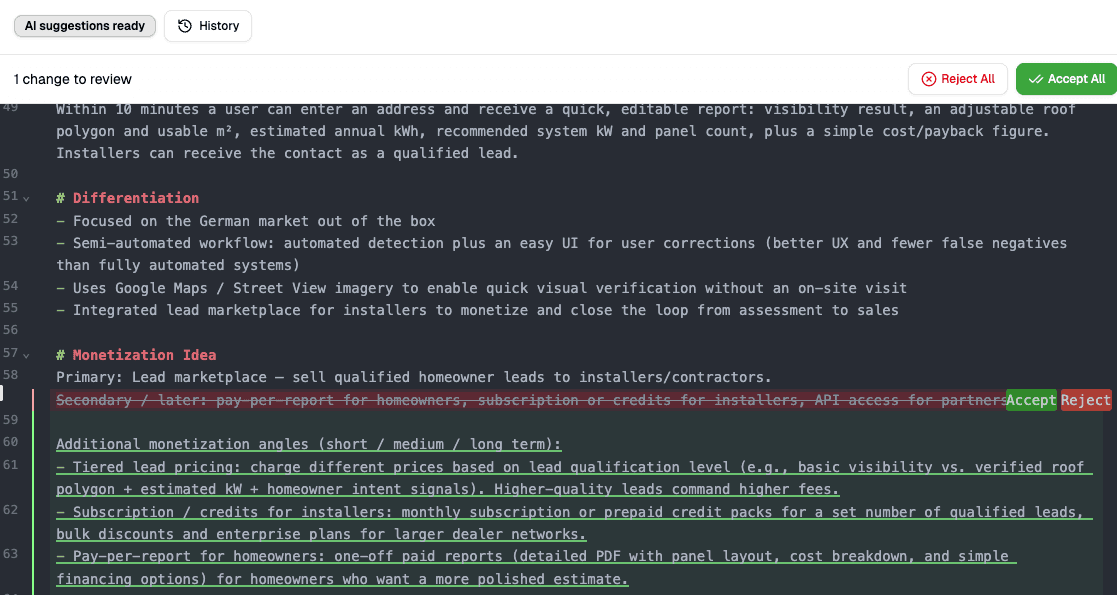
When Q's AI proposes changes to a page (through Sidebar AI or General Q), a dedicated review interface appears:
- A header shows "X change(s) to review" (or "AI is writing..." while the response is streaming)
- Each change appears as an inline diff in the editor
- Accept All / Reject All buttons for bulk actions
- Individual changes can be accepted or rejected using gutter buttons next to each change
While AI proposals are pending, the mode toggle is disabled. You need to accept or reject the AI changes before switching modes.
Version History
Every saved change creates a version. Open the history panel by clicking the History button in the toolbar.
Browsing Versions
The history panel shows all versions in a list, newest first:
- Version number - sequential, with the newest labeled "Current"
- Author - who made the change (user name, "AI", "System", or a specific source like "AI via Sidebar AI")
- Timestamp - when the version was created
- Commit message - optional description of the change
Select any version to see a side-by-side diff comparing it to the current content.
Restoring Versions
Click Restore on any version to replace the current content with that version. A new version entry is created to track the restore action, so you never lose anything.
Free plan keeps the last 3 versions. Paid plans keep unlimited history. See Plans & Credits for details. When older versions are hidden, you'll see an upgrade prompt.
Activities & Comments
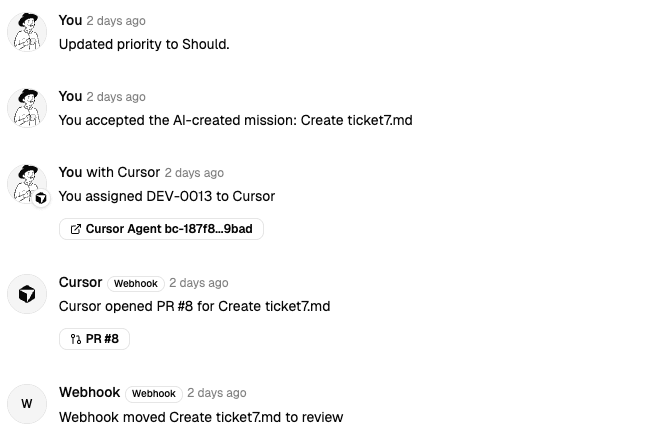
At the bottom of every text page, you'll find a unified timeline showing:
Activity Entries
System events for the page - created, updated, version restored, AI edits, and more. Each entry shows who made the change, when, and through which source (direct edit, Sidebar AI, MCP, webhook, etc.).
Comments
A threaded comment system for discussion:
- Leave a comment - write a message at the bottom of the timeline
- Reply - respond to a specific comment (shows "Replying to {name}" with a preview)
- React - heart reaction with a count
- Edit - authors can edit their own comments (shows "(edited)" label)
- Delete - authors can delete their own comments