Project Setup Wizard
The Project Setup Wizard helps you create a new project in Q. Choose the method that matches what you already have, and Q's AI guides you through an onboarding process that sets up your project's structure, pages, and context.
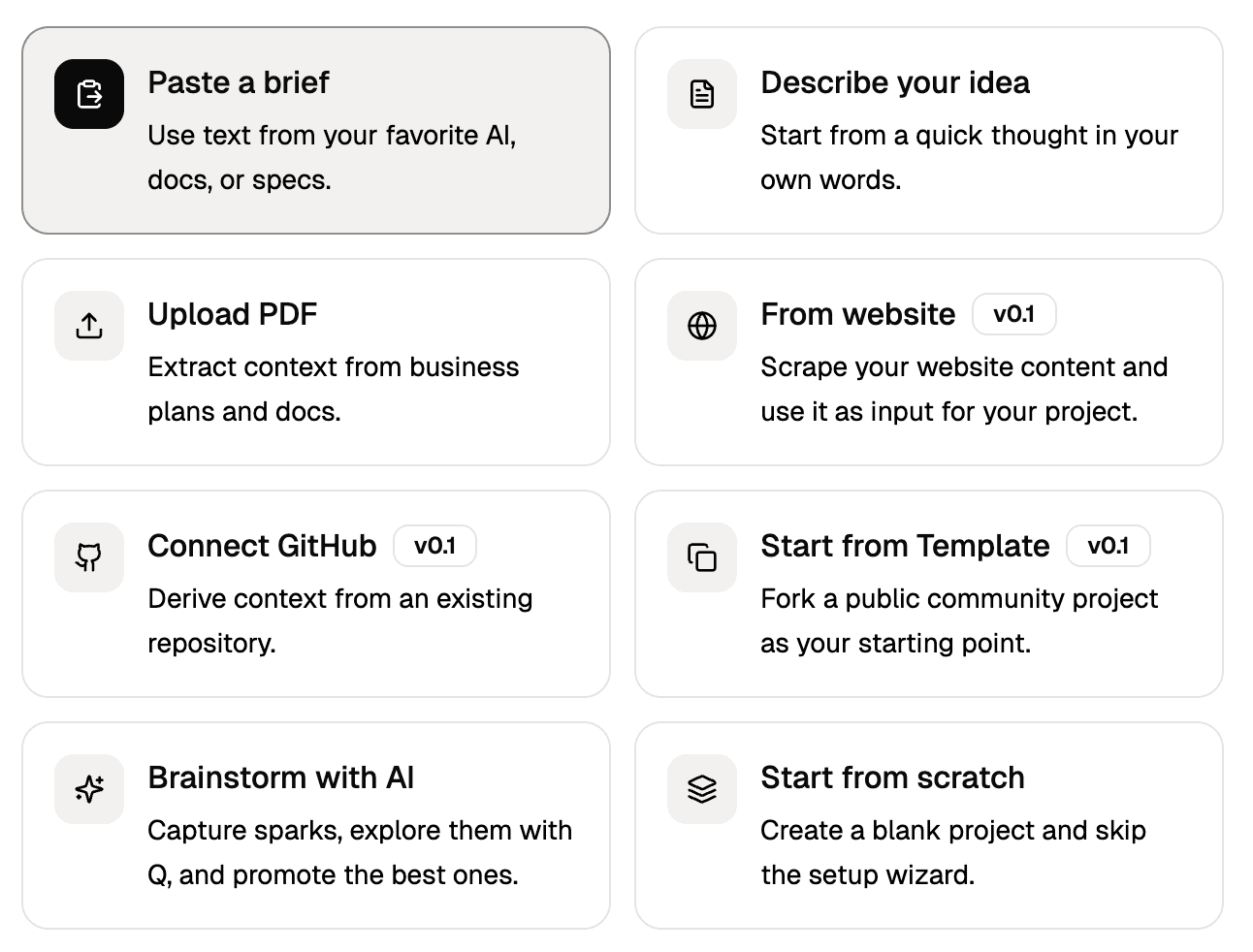
Methods
The wizard offers eight ways to start a project. Each method (except "Start from scratch") triggers an AI-guided onboarding flow that structures your input into a project.
Paste a Brief
Use text from your favorite AI, existing docs, or specifications. Paste any amount of context and Q will extract the key information to set up your project.
Best for: Teams that already have a product brief, PRD, or spec written somewhere else.
Describe Your Idea
Start from a quick thought in your own words. Write a few sentences about what you want to build and Q takes it from there.
Best for: Early-stage ideas where you have a clear vision but haven't written it down formally.
Upload PDF
Extract context from business plans, pitch decks, research papers, or any PDF document. Q reads the document and uses it as the foundation for your project.
Best for: Founders with existing business plans or teams with formal documentation.
From Website
Scrape your existing website content and use it as input for your project. Q extracts structure, copy, and context from the pages you point it to.
Best for: Products that already have a live website and want Q to understand what's already built.
Website scraping is in early access (v0.1). Results may vary depending on the site's structure.
Connect GitHub
Derive context from an existing repository. Q analyzes your codebase to understand the project's architecture, dependencies, and structure.
Best for: Developers with an existing codebase who want Q to understand the technical landscape.
GitHub connection is in early access (v0.1). Requires a connected GitHub account.
Start from Template
Fork a public community project as your starting point. Browse available templates and create your project with pre-built pages, boards, and structure already in place.
Best for: Getting started quickly with a proven structure - especially useful for common project types.
Templates are in early access (v0.1). More community templates are being added over time.
Brainstorm with AI
This method takes you to the Sparks canvas. Capture ideas, explore them with Q, and promote the best one into a project when it's ready.
Best for: When you don't have a clear idea yet and want to explore possibilities first.
Start from Scratch
Create a blank project and skip the setup wizard entirely. You get an empty project that you structure yourself.
Best for: Experienced Q users who want full control from the start, or projects that don't fit the guided flow.
What Happens During Setup
For all AI-guided methods, Q walks you through a conversation where it:
- Analyzes your input (brief, PDF, website, repo, or description)
- Asks clarifying questions to fill in gaps
- Proposes a project structure with pages and context
- Creates the project with your approval
The result is a fully structured project with pages, context, and - depending on your input - mission boards with initial operations and missions ready to go.
Plan Limits
The number of projects you can create depends on your plan:
| Plan | Project limit |
|---|---|
| Free | 3 projects |
| Solo | Unlimited |
| Team | Unlimited |
If you've reached your limit, the wizard shows an upgrade prompt. Your existing projects remain fully accessible. See Plans & Credits for details.