Workspace Settings
Workspace settings control everything at the workspace level - naming, team access, billing, and AI usage. Access them from the sidebar footer by clicking Workspace Settings.
Settings are organized into four tabs: General, Members, Billing, and AI Usage.
General
Workspace Information
- Name - your workspace display name (max 100 characters)
- Description - team workspaces only; what the workspace is for (max 500 characters)
Only Owners and Admins can update workspace settings.
Onboarding
Reset your onboarding to update your role and tool preferences. Clicking Reset Onboarding clears your onboarding state so the setup flow shows again next time you visit the workspace.
Members
The Members tab is where you manage who has access to your workspace. This is available for team workspaces only.
Seat Usage
Shows how many seats are used out of your plan's total. Seats are tied to your Team plan subscription.
Inviting Members
Click Invite Member to send an invitation:
- Email Address - the person's email
- Role - choose Viewer, Member, or Admin
Invitations expire after 7 days. Pending invitations are listed and can be revoked by Owners and Admins.
Roles & Access
Q has four roles with progressively broader permissions:
| Permission | Owner | Admin | Member | Viewer |
|---|---|---|---|---|
| Delete workspace | Yes | |||
| Update workspace settings | Yes | Yes | ||
| Manage billing | Yes | Yes | ||
| Top up credits | Yes | Yes | ||
| Invite / remove members | Yes | Yes | ||
| Change member roles | Yes | |||
| Create and edit projects | Yes | Yes | Yes | |
| Manage project visibility | Yes | Yes | ||
| Delete projects | Yes | Yes | ||
| Delete project content | Yes | Yes | Yes | |
| Read projects and content | Yes | Yes | Yes | Yes |
| Use AI features | Yes |
The Owner role is unique - there's exactly one per workspace. Only the Owner can change other members' roles or delete the workspace.
Billing
Manage your subscription, credits, and payment settings.
Subscription Plan
Shows your current plan (Free, Solo, or Team), renewal date, and cancellation status. From here you can:
- Manage Subscription - opens the Stripe portal for plan changes
- Cancel subscription - cancels at end of billing period
- Upgrade plan - switch to a higher tier
Pay-as-you-go Credits
Your credit balance for advanced AI models. Credits never expire.
- Add to credit balance - purchase more credits via Stripe
- Auto-recharge - coming soon; will automatically top up when balance runs low
Current Usage
Shows your usage for the current billing period:
- Basic AI - request count vs limit (e.g. 23 / 50), with a progress bar
- Monthly AI Credits - dollars used vs included (e.g. $3.20 / $10.00), with a progress bar
Billing History
Click View Billing History to open the Stripe Customer Portal where you can see invoices, receipts, and payment history.
AI Usage
A detailed view of AI consumption across the workspace.
Cumulative Spend
A chart showing daily AI costs over the last 30 days, so you can track spending trends.
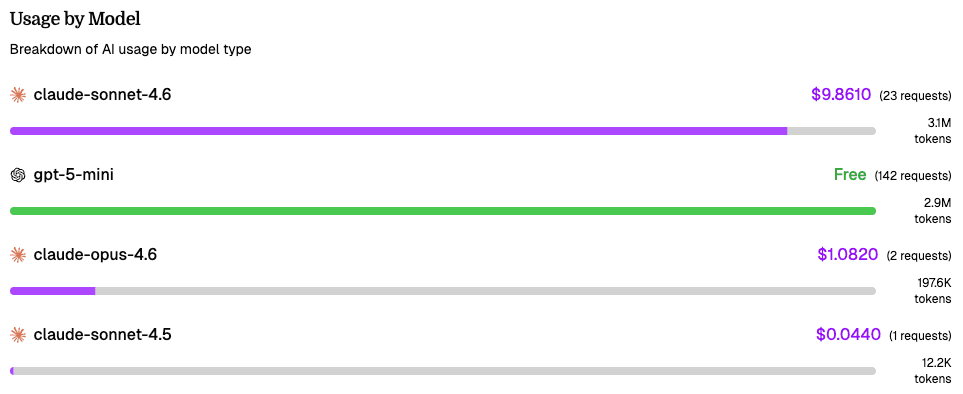
Model Breakdown
See how costs are distributed across models (GPT-5 mini, Claude Opus 4.7, etc.).
Recent Requests
A table of individual AI requests showing the model used, token count, cost, and date - up to the 50 most recent requests.
Workspace Selector
Switch between workspaces from the sidebar header. Click your workspace name to open a dropdown showing all your workspaces:
- Personal workspace - shown with a user icon, labeled "[Your Name] Workspace"
- Team workspaces - shown with a building icon, labeled with the workspace name
- Create workspace - at the bottom of the dropdown, opens a dialog to create a new team workspace
The active workspace is marked with a checkmark.