GitHub Integration
Connecting GitHub to Q lets Q Product Manager comment on pull requests using the product truth from your linked Q project. The setup is: connect a GitHub account, grant the GitHub App access to a repository, link that repository to a project, and choose which pages and mission boards Q is allowed to see.
Install the GitHub App
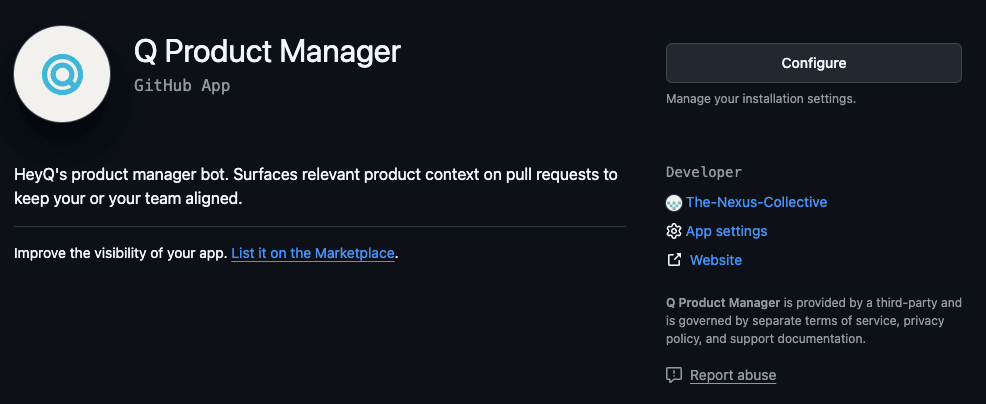
When installing the GitHub App, make sure the developer shown on GitHub is The-Nexus-Collective, the parent company behind heyQ.
Setup
Connect a GitHub account
In Q, open the GitHub integration section and click Connect GitHub Account. This opens the GitHub App installation flow for Q Product Manager.
Grant repository access
On GitHub, choose which repositories the app can access. You can connect one or more repositories, and you can connect multiple GitHub accounts if needed.
Link a repository to the project
Back in Q, choose one connected repository and link it to the current project. The UI lets you pick from all repos available across your connected installations.
Choose accessible pages and boards
When linking the repository, select which standalone pages and mission boards Q is allowed to use. Checked pages are used as context for PR comments. Checked boards are also used for mission matching.
Adjust configuration later if needed
After linking, you can reopen the repository configuration and change what Q can see at any time.
What Q uses as context
When you link a repository, you pick which pages and boards Q Product Manager is allowed to see. Only those checked items inform the PR comment:
- Standalone project pages — briefs, policies, anything you keep as a single page in Q.
- Mission boards — Q reads existing missions from these boards and uses them for mission matching.
If nothing is checked, Q has no context to work with and the PR comment will say so.
What happens on a pull request
When a PR is opened, or updated with new commits, Q takes a few steps before commenting:
- Loads your product truth. Only the pages and boards you checked during setup — nothing else.
- Tries to match the PR to an existing mission. Q checks the branch name (for example, a branch called
feature/ABC-42-onboardingpoints at missionABC-42), then searches the accessible boards for missions that sound like the PR, and finally has an AI pass filter out anything that's only loosely related. Missions already marked done are excluded from matching — a completed ticket shouldn't get attached to new work (you can still pin a done mission manually with/q link, see below). If nothing survives the filter, Q reports "no matching mission" rather than guessing. - If nothing matched and Retroactive PM is on: Q reads the diff, decides whether the change is meaningful at a product or user level, and optionally logs new missions on your default board.
- Posts a truth-context comment on the PR. That comment is always edited in place on later events — Q never stacks multiple long comments on the same PR.
When the PR merges, any mission Q auto-logged from it moves to done automatically. If the PR is closed without merging, those missions stay in review for you to decide.
Retroactive PM
Retroactive PM is an opt-in extension for teams (and vibe coders) who want product truth to keep up with the code without writing tickets by hand. When a PR doesn't match an existing mission, Q reads the diff at a product/user level and, if the change is meaningful, files zero, one, or several missions on a board of your choice.
Retroactive PM is off by default. Until you turn it on and pick a default board, the GitHub bot only comments on PRs — it never creates missions.
Enabling Retroactive PM
You can turn this on while linking a repo or later from Configure:
Open Retroactive PM settings
In the GitHub integration panel, open the repo's configure dialog and scroll to Retroactive PM.
Pick a default mission board
Choose the board Q should write to. This board is also used when reading existing missions to decide whether a PR is already covered.
Toggle auto-create on no match
When on, Q writes new missions if no existing mission matches. When off, Retroactive PM stays dormant for that repo.
Optional: enable auto-digest
Toggle Auto-digest to split small fixes into a rolling digest mission and keep only big items as standalone missions. Useful when you want the board to read like a changelog instead of a ticket tracker — the digest mission (and any done missions) can then feed the dedicated Changelog page.
What gets logged vs skipped
Retroactive PM is intentionally strict. It does not log:
- Refactors, dependency bumps, type fixes, formatting, internal architecture
- Test-only or CI/infra PRs
- Documentation-only changes (unless they are product-facing)
- Changes that already fit an existing open mission with high confidence
It does log items that cross the product/user bar:
- Net-new user-facing capability or removed behavior
- New public API, integration surface, or breaking change
- Billing, auth, or permissions changes
- Persisted data shape changes that affect users
When nothing crosses the bar, Q files nothing and the PR still gets a normal bot comment — no noise on the board.
Reviewing auto-logged missions
Every mission Q files from a PR starts in review and is attributed to the GitHub bot (not a human) so the origin is always clear. Unreviewed auto-logged missions are marked with an accent-coloured asterisk:
- Next to the mission row on the board
- Next to the board entry in the project sidebar (any board that has at least one unreviewed auto-logged mission)
Each of those missions has two quick actions:
- Promote — mark it reviewed, which clears the asterisk
- Discard — delete the mission if it shouldn't have been logged
The board toolbar also shows an Auto-logged filter chip with the unreviewed count so you can focus on the review queue.
When the source PR merges, any still-in-review auto-logged missions from that PR advance to done automatically.
If GitHub retries the same event for some reason, Q won't create duplicate missions — it recognises a PR it has already processed and skips the logging step.
Slash commands on a pull request (,[object Object],)
When Q links the wrong mission, misses one, or picks none at all, correct it from the pull request itself by posting a new comment that starts with /q. Q reads the first line, updates the pinned mission set, and re-runs so the existing Q comment on the PR is refreshed in place. No need to leave GitHub.
Command reference
| Command | Argument | Effect on this PR |
|---|---|---|
/q help | — | Replies with a summary of all commands. Doesn't re-run the bot. |
/q link <ID> | Mission ID, e.g. ABC-12 | Pins <ID> to this PR (added to whatever is already pinned). If Q had already auto-logged a mission for this PR, that auto-logged one is cleaned up — you just told Q the real mission existed, so the stand-in goes away. Re-runs so the Q comment reflects the new choice. |
/q unlink <ID> | Mission ID | Removes <ID> from the pinned set (or from the auto-matched set, which is then pinned as the starting point). Re-runs. |
/q reset | — | Pins the PR to "no mission" and suppresses Retroactive PM for it. Re-runs so the Q comment refreshes to "No linked missions found". Use when the PR genuinely has no ticket and you don't want one auto-logged. |
/q rerun | — | Clears your pins entirely and lets Q re-match automatically from scratch. Re-runs. |
Mission IDs are case-insensitive — /q link abc-12 and /q link ABC-12 are equivalent. Unknown input replies with "Unknown or invalid /q — try /q help" and doesn't re-run.
Scenario cheatsheet
| Situation | What you type |
|---|---|
| Q picked the wrong mission | /q unlink WRONG-1 then /q link RIGHT-2 (two comments), or just /q link RIGHT-2 if you want both kept |
| Q missed the mission entirely | /q link ABC-12 (also cleans up any auto-logged mission for this PR) |
| The PR has no mission and you don't want Q inventing one | /q reset |
| You think the matcher can do better now (new branch pushes, updated title) | /q rerun |
| PR has no mission and you want Q to auto-log one from the diff | /q log |
| You want the list of commands | /q help |
What happens after you send a ,[object Object], command
- Q reacts 👀 to your comment to confirm it was received.
- Q re-runs the workflow. When it finishes (usually under 30 seconds, longer on big projects) the existing Q comment on the PR is edited in place — no second long comment.
- Q swaps the 👀 on your command for 👍 to signal "applied". If you don't see the thumbs-up after a minute or so, something went wrong — the 👀 stays so you know it didn't complete.
- The Q comment gets a small footnote like "Last action:
/q link ABC-1by @alice" so the provenance is visible to anyone reading the PR later. - Your pinned selection is remembered. If new commits come in on the same PR, Q keeps the mission you pinned — it won't quietly swap it out.
Requirements
- The repo has to be linked to a project in Q, and the GitHub App has to have access to it.
- On the free plan,
/qworks only on public repos. Private repos need the Builder or Team plan. - The GitHub App needs permission to read and write Issues — that's the permission GitHub uses to deliver PR conversation comments to Q. If
/qseems to do nothing at all, open GitHub → Settings → Applications → Q Product Manager → Configure and check that the app has Issues enabled and the Issue comment event is subscribed.
Things to know
- Anyone who can comment on the PR can use
/q. Bear that in mind for repos with outside contributors. - Only the first line of a comment is read, and only one command per comment. Put the command on its own line.
/qon a plain issue (not a pull request) does nothing.- Q ignores its own comments so it doesn't talk to itself.
Rate limits
To keep things predictable — and stop a runaway CI loop from quietly burning through your AI budget — the GitHub bot has two hourly caps:
| Limit | Cap | What happens if you hit it |
|---|---|---|
| Automatic PR events per repo | 60 per hour | Extra events on that repo are quietly skipped until the hour rolls over. You'll see a "PR skipped — rate limit reached" entry in the project activity feed. |
/q commands per GitHub user | 10 per hour | Q replies to the PR with "Rate limited — you can send up to 10 /q commands per hour. Try again in ~N minutes." |
The two limits are independent: a busy CI loop filling the repo's bucket won't block you from sending /q link ABC-1 to correct a mission.
Managing your connected repositories
Once connected, Q shows:
- Connected GitHub accounts
- Linked repositories for the current project
- The default branch for each linked repo
- A summary of how many pages the repo link can access
From there, you can:
- Link another repository
- Reconfigure page access
- Unlink a repository
Select the pages and boards that actually reflect product truth for that repository. Better source selection leads to better PR comments.
What the PR comment looks like
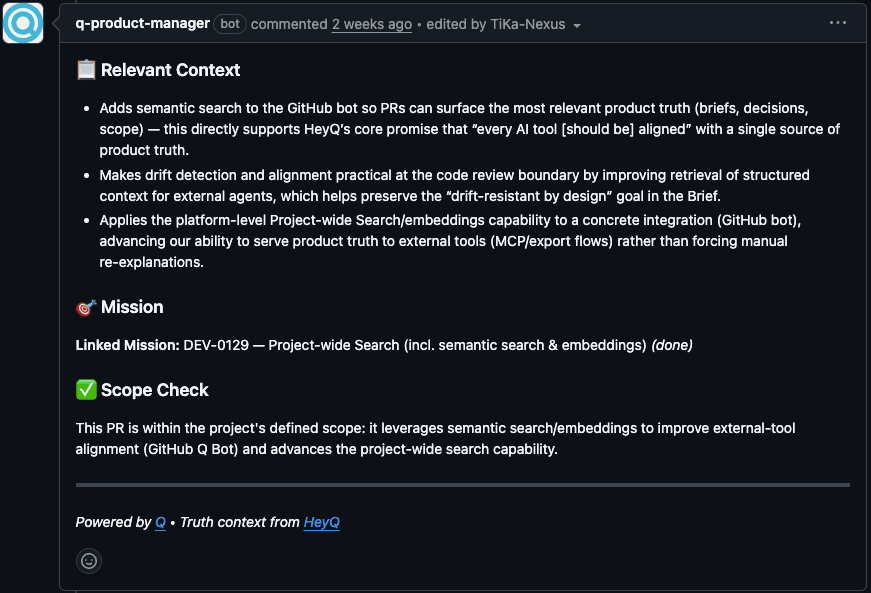
After setup, Q Product Manager leaves a PR comment that covers truth context: the relevant project pages, missions, and targeted context needed to interpret the pull request against the product source of truth.
Example
Below is a Q Product Manager comment on a pull request for heyQ. The PR adds semantic search capabilities for Q Product Manager itself, and the comment connects that implementation back to the relevant product truth and mission context.
The GitHub integration also underpins other workflows, such as repository-linked automation and Cloud Agent related flows, but the core setup starts with connecting an account, linking a repo, and selecting the right pages and boards.