Raw File Export
Raw File Export lets you download files from Q as a ZIP archive. The export preserves the folder structure exactly as stored in Q, so you can unpack it locally and use the files in other tools or workflows.
When to Use This
Use Raw File Export when:
- You want a static snapshot of your project files
- You need local files instead of a live MCP connection
- You want to unpack Q content into another tool or repository
- You want to export only a subset of files
Raw File Export is a point-in-time download. If you want a live connection to Q, use the MCP Server instead.
How It Works
Open Raw Files Export
Under project settings, integrations, locate the Raw Files Export section.
Choose the files to include
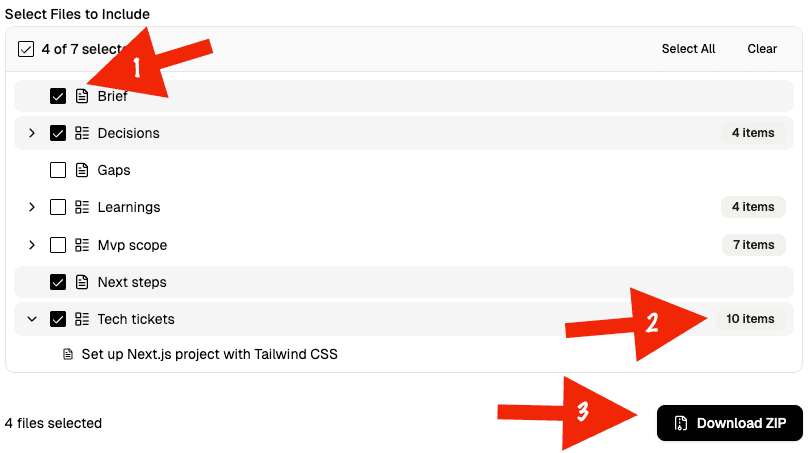
Use the file selector to choose which files should be included in the ZIP. By default, all selectable files are preselected.
Review board behavior
Mission board body files are not shown as separate selectable entries. Instead, when you select a mission board, all of its mission items are included automatically.
Download the ZIP
Click Download ZIP. Q generates the archive in the browser and downloads it to your machine.
Export UI
What Gets Included
The export includes:
- The files you selected in the picker
- Mission board index files when selected
- All mission items belonging to a selected board
- The original folder structure from Q
The export does not show mission item body files as separate top-level choices in the selector. They are bundled automatically with their board.
It also excludes internal system files such as manifest.json.
Selection Behavior
| Behavior | What happens |
|---|---|
| Initial state | All selectable files are selected by default |
Select All | Selects every available exportable file |
Clear | Deselects everything |
| Selecting a board | Includes the board and all of its mission items |
| Expanding a board | Lets you preview the included mission items |
Result
The downloaded ZIP preserves Q's folder structure. For example, an export may look like this after unpacking:
brief.md
decisions/
  index.json
  DEC-0001.md
  DEC-0002.md
tech-tickets/
  index.json
  TECH-0001.md
  TECH-0002.md
If you mainly want local files, Raw File Export is the simplest option. If you want an AI tool to work against live Q data instead of downloaded snapshots, use MCP.