Cursor Rules Export
Cursor Rules Export generates .mdc files for Cursor and packages them into a downloadable .cursor/rules export. You can either combine the selected content into one rule or generate a separate rule for each selected section.
What It Does
Use Cursor Rules Export when you want product context from Q to live as static rule files in Cursor.
- Single File mode creates one
.mdcfile containing all selected content - Per Section mode creates one
.mdcfile per selected section or file - Mission boards are converted into markdown with their included items
- You can preview the generated output before downloading
How It Works
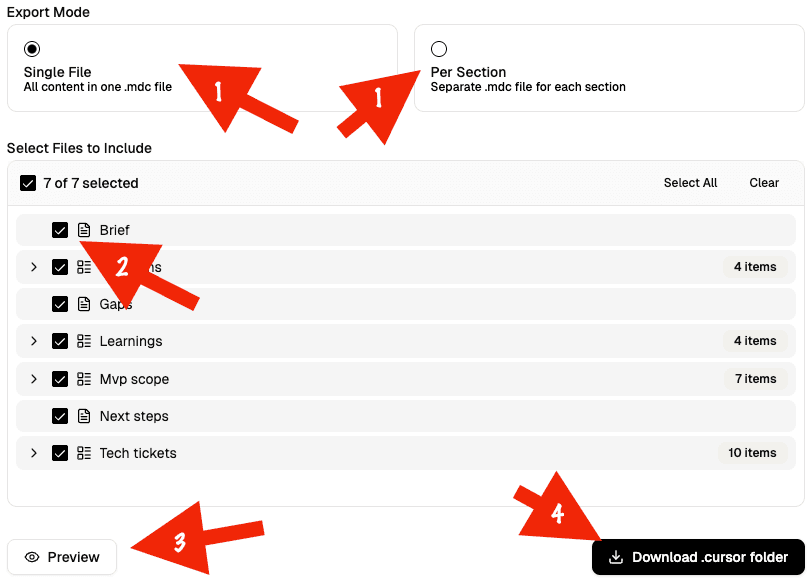
Choose the export mode
Pick between Single File and Per Section.
Single File generates one rule containing all selected content.
Per Section generates multiple .mdc files, one for each selected section.
Select the files to include
Use the file selector to include or exclude files. The selector supports Select All and Clear, and mission boards can be expanded to preview their items.
Preview the generated rules
Click Preview to inspect the generated content before exporting. In single-file mode, the preview shows the combined rule content. In per-section mode, it shows a summary of the generated files.
Download the export
Click Download .cursor folder to download a ZIP containing the generated Cursor rules.
Export UI
Export Modes
| Mode | Best For | Result |
|---|---|---|
single | One broad rule with all selected context | One .mdc file named from the idea, such as my-project-context.mdc |
per-section | Smaller, more focused rules | Multiple .mdc files, one generated from each selected path |
Selection Behavior
The selector behaves like Raw File Export:
- All exportable markdown files and mission boards are selected by default
- Mission body files are not shown as separate top-level choices
- Selecting a mission board includes all of its mission items automatically
- Expanding a mission board lets you preview which items will be included
- Internal files like
manifest.jsonare excluded
Preview Behavior
- In single mode, preview shows the combined
.mdccontent - In per-section mode, preview shows a summary of the generated
.mdcfiles - Long previews are truncated in the UI for readability
Download and Install
The main export action downloads a ZIP containing the generated .cursor folder.
When the generated rule is small enough, Q can also provide Add to Cursor deeplinks for one-click installation. If a rule is too large for a deeplink, downloading the export is the fallback.
If you want one broad project rule, use single. If you want more focused
rules that are easier to manage individually, use per-section.
Cursor rule exports are static snapshots. When your content in Q changes, re-export the rules to keep your Cursor setup in sync.